
More Pages & Links
More pages
Now the first page is saved it is easy to create more!
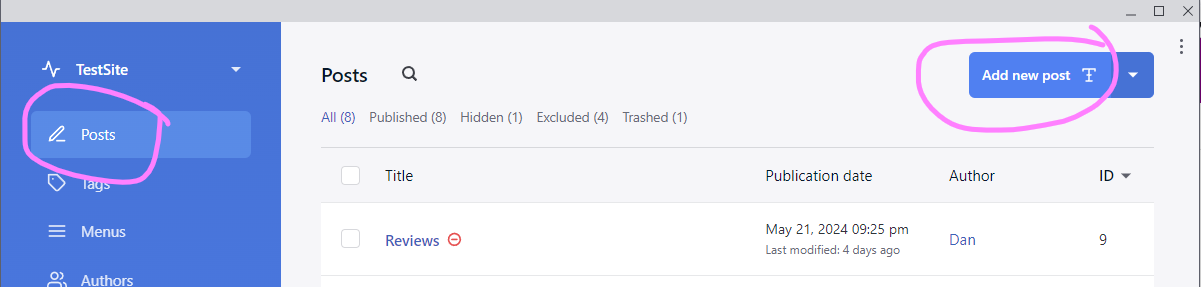
- Go to the "Posts" menu
- Click on "Add new post" Button. This might default to the same editor as you used the first time
- But if not, or you want to or you want to use a different editor use the drop down to the side of the "Add new post" button.
Linking pages together
Linking from one page to another is one of the best things about the web. It lets user jump from one part of your site to another, lets you point people towards other websites, and other epople point toward yours. Joining pages and web sites in to a World Wide Web.
Now yolu have more than one page you can create links between them.
In the Publii Block editor we can create links using the context menu. This is a little menu that appears when you you the mouse or tourchscreen to select (highlight) some of the text that you are editing.
(if you use the keyboard to select the text, then you will need to right click the selected text to show the menu.)
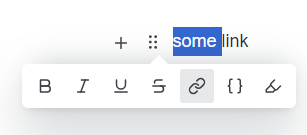
- Write some text
- Highlight it
- Click the "link" button
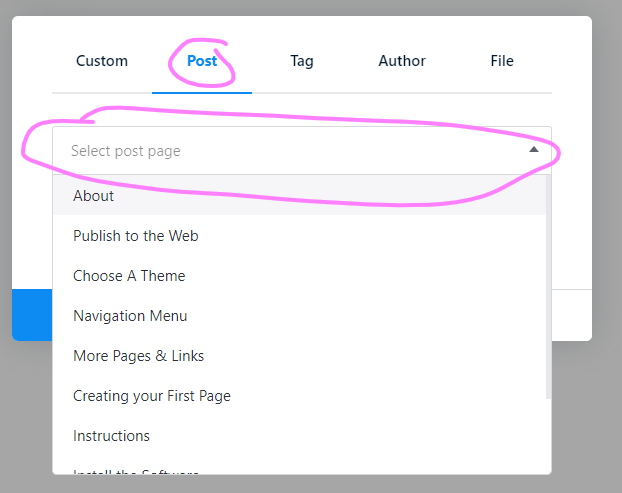
- Choose "Post" as the type
- Select the other page that you want to link to.
- Click OK
For example, you may want to add a link at the bottom of your home page content that points the use to the different top level sections of your site. e.g on this site the home page links to the "Instructions" page like this:
Get started with: The Instructions
I selected "The Instructions" and turned it into a link to the Instructions page